Let’s Get Meshtastic

This post is going to be a work in progress, but I wanted to get some notes on paper so bear with me.

What is Meshtastic?

You can read about it here, but here’s the intro.

Meshtastic® is a project that enables you to use inexpensive LoRa radios as a long range off-grid communication platform in areas without existing or reliable communications infrastructure. This project is 100% community driven and open source!

Check out these range tests with up to 331km over ground! Here’s a video on how to get more range. Here’s a Reddit thread of people talking about how the communicate with Meshtastic.

How to get started?

Here’s the official Getting Started page. First, you’ll need a LoRa board. Here’s a comparison table. If you’re like me and don’t know what to compare, here’s a Reddit thread with some opinions on top boards. Lots of people recommend the LILYGO T-Echo because it has a power-efficient nRF52840 MCU and e-ink display, but it’s $55-60. I’m going to start with an ESP32-based Heltec v3 ($18) and a GPS-enabled Heltec Wireless Tracker ($23). You can check other supported devices here. In many cases, you can order them with a case or print your own. Or if you just want something more polished, the RAK WisMesh Pocket V2 ($99) looks pretty good.

You can read this Reddit thread if you’re curious about why ESP is more popular than NRF chips. Basically, because it’s cheaper.

Here’s a Meshtastic Discord Bot!

UPDATE: April 27 2025

So I got a few boards to play with. This MakerHawk one comes with a small rigid antenna that works with most 3D-printed cases. This MakerFocus one doesn’t come with a rigid antenna so I also got this 5 dBi antenna. Note you’ll need to use a case that can fit the larger base. Lastly, I got these 3000 mAh batteries to play with standalone applications. You could also just power it from your phone device with a USB C cable.

I’m just following Meshtastic Getting Started documentation for this next part.

Installing drivers

On my later-model computer, I didn’t have to install any drivers. On my 2013-era Thinkpad, I had to install this CP210x Universal Windows Driver to get the Flasher tool to recognize my board.

Flashing the firmware

This was super easy. I just plugged my device into my Windows laptop, went to Meshtastic Web Flasher in Microsoft Edge browser, picked Heltec V3, chose default settings for everything else, and clicked Update. I got a browser notification to select a device, chose COM5 (might be different for you), and the flashing process did its thing.

Connect and configure device

Download the app from F-Droid or Google Play. Pair the newly-flashed Meshtastic device with your phone’s Bluetooth. It’ll be named something like Meshtastic_XXXX. There will be a pairing key on the Meshtastic device’s display to complete pairing.

How to make Tomcat/Catalina TLDScanner ignore a bunch of JARs

This was just an annoying message for some web apps I’ve been maintaining. I couldn’t get it to just ignore the directory so here’s how I enumerated all the JARs. My web apps are all stored in /opt/tomcat/webapps. YMMV.

grep -oE "/opt/tomcat/webapps/\S+\.jar" /opt/tomcat/logs/catalina.out | awk -F/ '{print $NF",\\"}' | sort | uniq

Then just copy/paste the results in /opt/tomcat/conf/catalina.properties under the tomcat.util.scan.StandardJarScanFilter.jarsToSkip key and restart the server.

systemctl restart tomcat && tailf /opt/tomcat/logs/catalina.out

Happy serving!

Getting Up And Running With Jupyter Notebooks In Docker

Jupyter notebooks are handy for data science and other use cases that rely on iterative programming. If you’re already comfortable running Docker, here’s an easy one-liner to get up and running.

docker run --rm -p 10000:8888 -v ${PWD}:/home/jovyan/work jupyter/datascience-notebook:2023-03-09

The first port number (10000) can be changed to expose the notebook to a different port. The volume (-v) flag can be changed from the present directory (${PWD}) to a directory containing data you’d like to work with. To connect to the notebook, you’ll need to get the connection string from the output. It’ll look like this:

[I 2023-03-13 17:23:37.887 ServerApp] Jupyter Server 2.4.0 is running at:
[I 2023-03-13 17:23:37.887 ServerApp] http://bc7b3ff32303:8888/lab?token=6fd0237c4df26bc1e1af4a7c386c28c8573498850701f200
[I 2023-03-13 17:23:37.887 ServerApp]     http://127.0.0.1:8888/lab?token=6fd0237c4df26bc1e1af4a7c386c28c8573498850701f200

If you’re doing this from a Chromebook, you’ll have to get the real IP address from the output of ip addr show dev eth0. The port number is actually 10000 or whatever port you exposed. So the URL to paste in your browser will be something like this:

http://100.115.92.199:10000/lab?token=6fd0237c4df26bc1e1af4a7c386c28c8573498850701f200

Easy peasy!

Bridge OS Kernel Panics On Macbook Pro

I’ve been getting “Your computer was restarted because of a problem” errors like this lately:

panic(cpu 0 caller 0xfffffff01e07db08): macOS watchdog detected
Debugger message: panic
Memory ID: 0x6
OS release type: User
OS version: 20P3045
macOS version: 22D68
Kernel version: Darwin Kernel Version 22.3.0: Thu Jan  5 20:17:53 PST 2023; root:xnu-8792.81.2~1/RELEASE_ARM64_T8010
KernelCache UUID: 66D3D9EAC3796DA60EBA5A1BCB588E81
Kernel UUID: A133ECF3-E2EF-3DEA-8A4C-D21463BB0B0D
Boot session UUID: 2D1ABF32-DA0B-4CF2-B82F-BF811BD8C2B3
iBoot version: iBoot-8419.80.7
secure boot?: YES
roots installed: 0
x86 EFI Boot State: 0x16
x86 System State: 0x0
x86 Power State: 0x0
x86 Shutdown Cause: 0x5
x86 Previous Power Transitions: 0x405060400
PCIeUp link state: 0x89271614
macOS kernel slide: 0x18600000
Paniclog version: 14
Kernel slide:      0x0000000017d2c000
Kernel text base:  0xfffffff01ed30000
mach_absolute_time: 0x7ce0fb8cd1
Epoch Time:        sec       usec
  Boot    : 0x640a4370 0x0003d4f9
  Sleep   : 0x640a7276 0x000d9fc2
  Wake    : 0x640ab429 0x000d7b2c
  Calendar: 0x640add0e 0x00007068

Zone info:
  Zone map: 0xffffffdc07cc0000 - 0xffffffe207cc0000
  . VM    : 0xffffffdc07cc0000 - 0xffffffdcee324000
  . RO    : 0xffffffdcee324000 - 0xffffffdd3aff0000
  . GEN0  : 0xffffffdd3aff0000 - 0xffffffde21654000
  . GEN1  : 0xffffffde21654000 - 0xffffffdf07cb8000
  . GEN2  : 0xffffffdf07cb8000 - 0xffffffdfee320000
  . GEN3  : 0xffffffdfee320000 - 0xffffffe0d4988000
  . DATA  : 0xffffffe0d4988000 - 0xffffffe207cc0000
  Metadata: 0xffffffdc00234000 - 0xffffffdc01a34000
  Bitmaps : 0xffffffdc01a34000 - 0xffffffdc01c68000

TPIDRx_ELy = {1: 0xffffffdf076d5088  0: 0x0000000000000000  0ro: 0x0000000000000000 }
CORE 0 is the one that panicked. Check the full backtrace for details.
CORE 1: PC=0xfffffff01ef4e848, LR=0xfffffff01ef4e848, FP=0xffffffeac9fdbf00
Compressor Info: 0% of compressed pages limit (OK) and 0% of segments limit (OK) with 0 swapfiles and OK swap space
Panicked task 0xffffffde216bd638: 0 pages, 223 threads: pid 0: kernel_task
Panicked thread: 0xffffffdf076d5088, backtrace: 0xffffffec820176c0, tid: 378
		  lr: 0xfffffff01ef1d44c  fp: 0xffffffec82017700
		  lr: 0xfffffff01ef1d25c  fp: 0xffffffec82017770
		  lr: 0xfffffff01f053220  fp: 0xffffffec820177e0
		  lr: 0xfffffff01f0521b8  fp: 0xffffffec820178a0
		  lr: 0xfffffff01eedd5fc  fp: 0xffffffec820178b0
		  lr: 0xfffffff01ef1ccd0  fp: 0xffffffec82017c60
		  lr: 0xfffffff01f5c6c1c  fp: 0xffffffec82017c80
		  lr: 0xfffffff01e07db08  fp: 0xffffffec82017cb0
		  lr: 0xfffffff01e065604  fp: 0xffffffec82017d10
		  lr: 0xfffffff01e06eac8  fp: 0xffffffec82017d60
		  lr: 0xfffffff01e067b58  fp: 0xffffffec82017e00
		  lr: 0xfffffff01e064b94  fp: 0xffffffec82017e70
		  lr: 0xfffffff01de81b40  fp: 0xffffffec82017ea0
		  lr: 0xfffffff01f51205c  fp: 0xffffffec82017ee0
		  lr: 0xfffffff01f5118b4  fp: 0xffffffec82017f20
		  lr: 0xfffffff01eee86c0  fp: 0x0000000000000000

That only gives you part of the story. The next step was to look at the Log Reports in Console for reports like panic-full-2023-03-10-073243.0003.ips.

{"roots_installed":0,"caused_by":"macos","macos_version":"Mac OS X 13.2.1 (22D68)","os_version":"Bridge OS 7.2 (20P3045)","macos_system_state":"running","incident_id":"2D1ABF32-DA0B-4CF2-B82F-BF811BD8C2B3","bridgeos_roots_installed":0,"bug_type":"210","timestamp":"2023-03-10 07:32:43.00 +0000"}
{
  "build" : "Bridge OS 7.2 (20P3045)",
  "product" : "iBridge2,3",
  "socId" : "0x00008012",
  "kernel" : "Darwin Kernel Version 22.3.0: Thu Jan  5 20:17:53 PST 2023; root:xnu-8792.81.2~1\/RELEASE_ARM64_T8010",
  "incident" : "2D1ABF32-DA0B-4CF2-B82F-BF811BD8C2B3",
  "crashReporterKey" : "c0dec0dec0dec0dec0dec0dec0dec0dec0de0001",
  "date" : "2023-03-10 07:32:43.90 +0000",
  "panicString" : <REMOVED FOR BREVITY>,
  "panicFlags" : "0x902",
  "bug_type" : "210",
  "otherString" : "\n** Stackshot Succeeded ** Bytes Traced 37852 (Uncompressed 115568) **\n",
  "macOSPanicFlags" : "0x0",
  "macOSPanicString" : "BAD MAGIC! (flag set in iBoot panic header), no macOS panic log available",
  "memoryStatus": <REMOVED FOR BREVITY>,
  "binaryImages": <REMOVED FOR BREVITY>,
  "processById": <REMOVED FOR BREVITY>

Note that Bridge OS is failing, indicating a Touch Bar issue. I found this SO post suggesting a cron script that restarts the touch bar every 3 minutes.

*/3 * * * * /usr/bin/pkill "Touch Bar agent" &>/dev/null; /usr/bin/killall "ControlStrip" &>/dev/null;

Edit your crontab with crontab -e then copy and paste that in. It’s not the cleanest solution, but if it gets the job done, I don’t really care.

I’m testing it now to see if it works…

Organizing A Photo Library With Rclone And Exiftool

I recently found out Google Photos makes it difficult to get metadata from photos. Also, they were using up all my cloud storage. So I decided to self-host my photo library. To get the original photos with metadata intact, I had to export them using Google Takeout. I had about 1 TB of Google Photos data which I had to download in 50 GB chunks. If you’re downloading to a flash drive, there’s a good chance it’s formatted using FAT which means you’ll need to download them in 4GB chunks. 4GB * 250 downloads is quite a bit and Google makes you download each archive manually. So yeah, don’t use Google Photos as a photo backup solution. It’s free and the search tools are pretty good, though.

Once I downloaded all the archives, I deleted any duplicates using rclone. I chose to dedupe by hash and automatically delete every file except for the first result. The first result may not have the name I want, but I’m going to use exiftool to rename everything later. I redirect output to a log file in case I need to analyze things later.

rclone dedupe --by-hash --dedupe-mode first --no-console --log-file ../rclone.log .

Next, I organized everything into directories by date using exiftool. If the picture had metadata containing the date the picture was taken, I used that. If not, I used the time the file was modified. I redirected output to a log file so I can address things like duplicate files later.

exiftool -r -d %Y/%m/%d "-directory<filemodifydate" "-directory<createdate" "-directory<datetimeoriginal" -overwrite_original . 1> ../exiftool.log 2>&1

I’m trying to think of some other identifying information to add to the directory names, like the location or activity or event. Location is pretty easy to get in a parseable format.

exiftool -gpslatitude -gpslongitude -n -json . | jq

Then I just gotta reverse geocode it.

I’d also like to do some deduplication using an image similarity detector. Facebook open-sourced a tool that looks like it might work.

How to develop websites with Astro + Docker + ChromeOS

I was reading StackShare’s Top Developer Tools 2022 and noticed Astro is the #1 tool so figured I should check it out. I use an Acer Spin 713 Chromebook for my daily driver and it works pretty well for local dev, but it does have a few quirks, namely that the dev environment runs in its own containerized environment so you have to keep track of things like the container IP.

# Get the IP address of the Crostini container
IP_ADDR=$(ip -4 addr show eth0 | grep -oP '(?<=inet\s)\d+(\.\d+){3}')

Next, start up a Node container. (If you don’t have Docker installed, follow this blog post.)

# Run the container
docker run -it --rm --entrypoint bash -p 3000:3000 node

Once you’re in the container, initialize a new Astro app.

npm create astro@latest
# say yes to the prompts

Run the app. The -- --host 0.0.0.0 is important.

npm run dev -- --host 0.0.0.0

Now jump into your browser, plug in http://${IP_ADDR}:3000, and you should be good to go.

So that’ll get you going. Now get to web devving!

Troubleshooting `error creating vxlan interface: operation not supported` on Docker on Ubuntu on Raspberry Pi

I recently did a big update on my home server and noticed my containerized services weren’t starting up. First, I looked into the Portainer service:

docker stack ps portainer --no-trunc

After searching around the internet, I found this advice to install a package.

sudo apt-get update && sudo apt-get install linux-modules-extra-raspi

After that, I got a scary warning about how the new kernel wouldn’t be loaded automatically so I should reboot.

sudo reboot now

Things still weren’t working after I rebooted, but restarting Docker seemed to kick Portainer into motion.

sudo systemctl restart docker

Re-enabling Change Filament On Ender 3 Pro

I was playing around with a new Ender 3 Pro at the maker space and noticed the Change Filament option was gone. This option was useful because it would eject filament instead of having to pull it out by hand when you wanted to change it. Our other Ender 3 Pro has a mini USB plug, but this one has a micro USB plug.

Left: micro USB = old 8-bit board, Right: mini USB = new 32-bit board

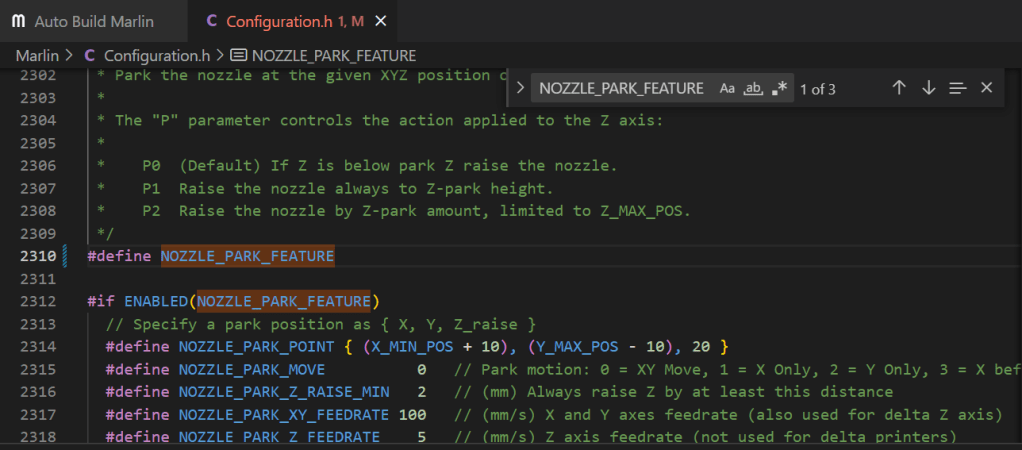
That got me into researching the new 32-bit boards for this printer and how they disabled the Change Filament feature. I learned about the Marlin firmware, Marlin Auto Build, and its custom configurations. It’s a bit complicated, but this Youtube video helped a lot by walking through the process. I used bugfix-2.1.x branch, copied the contents of Configurations\config\examples\Creality\Ender-3 Pro\CrealityV427 configuration to the Marlin directory, built the firmware, copied it to a SD card, and installed it, but the Change Filament option still wasn’t there! I found this post explaining that the ADVANCED_PAUSE_FEATURE and NOZZLE_PARK_FEATURE had to be enabled. The first feature was enabled, but I had to uncomment the second one in Configurations.h.

I rebuilt the firmware and Change Filament is still not showing up. Guess I’ll have to keep looking into this…

How to fix `The following signatures couldn’t be verified because the public key is not available: NO_PUBKEY`

You might have run into this error when updating packages. The error is probably because you don’t have the public key corresponding to whatever private key the package was signed with. Hopefully, you can just download the public key from keyserver.ubuntu.com and get on with your day. In my case, it was a Google SDK key 8B57C5C2836F4BEB that was missing. Just use the following command, replacing the key ID with the key you need.

sudo apt-key adv –keyserver keyserver.ubuntu.com –recv-keys 8B57C5C2836F4BEB

Now, sudo apt-get update should just work. If it doesn’t, feel free to leave a comment.

Set up Ubuntu 22.04 Server 64-bit on Virtualbox 6.1

Download the Ubuntu ISO here.

Create a new VM. Here’s the specs I use.

  • 2 GB RAM
  • 25 GB HDD, dynamically allocated

Once the VM is created, configure a few more properties.

  • In System, increase CPUs to 2, and enable PAE
  • In Storage, attach the Ubuntu ISO to the optical drive
  • In Network > Advanced, set up a port forwarding rule TCP 2222 to 22 for SSH

Start up the new VM and follow the installation prompts. Once installed and rebooted, pause the VM and restart in headless mode.

I ran into errors during installation which I worked around by disabling the network interface for the installation.

From your host CLI, copy a SSH key to the VM.

ssh-copy-id -i ~/.ssh/id_ed25519 user@localhost -p 2222

Don’t have a SSH key?

Generate one.

ssh-keygen -t id_ed25519

Log in to your VM.

ssh user@localhost -p 2222

Do you need to set up a web proxy?

Configure it in /etc/apt/apt.conf and /etc/environment.

sudo tee -a /etc/apt/apt.conf <<EOF
Acquire::http::Proxy "http://proxy.example.com:8080";
Acquire::https::Proxy "http://proxy.example.com:8080";
EOF
sudo cp /etc/environment /tmp/environment
sudo tee -a /etc/environment <<EOF
http_proxy=http://proxy.example.com:8080
https_proxy=http://proxy.example.com:8080
HTTP_PROXY=http://proxy.example.com:8080
HTTPS_PROXY=http://proxy.example.com:8080
EOF

Update packages.

sudo apt update && sudo apt upgrade -y

Set up automatic updates

Install unattended-upgrades. This will update your OS automatically.

sudo apt install unattended-upgrades -y sudo systemctl enable unattended-upgrades

Back up original configuration, then enable updates, email notifications, remove unused packages, and automatic reboot.

sudo cp /etc/apt/apt.conf.d/50unattended-upgrades /tmp/50unattended-upgrades
sudo sed -i 's/\/\/"${distro_id}:${distro_codename}-updates";/"${distro_id}:${distro_codename}-updates";/' /etc/apt/apt.conf.d/50unattended-upgrades
sudo sed -i 's/\/\/Unattended-Upgrade::Mail "";/Unattended-Upgrade::Mail "me@example.com";/' /etc/apt/apt.conf.d/50unattended-upgrades
sudo sed -i 's/\/\/Unattended-Upgrade::MailReport "on-change";/Unattended-Upgrade::MailReport "only-on-error";/' /etc/apt/apt.conf.d/50unattended-upgrades
sudo sed -i 's/\/\/Unattended-Upgrade::Remove-Unused-Kernel-Packages "true";/Unattended-Upgrade::Remove-Unused-Kernel-Packages "true";/' /etc/apt/apt.conf.d/50unattended-upgrades
sudo sed -i 's/\/\/Unattended-Upgrade::Remove-Unused-Dependencies "true";/Unattended-Upgrade::Remove-Unused-Dependencies "true";/' /etc/apt/apt.conf.d/50unattended-upgrades
sudo sed -i 's/\/\/Unattended-Upgrade::Automatic-Reboot "false";/Unattended-Upgrade::Automatic-Reboot "true";/' /etc/apt/apt.conf.d/50unattended-upgrades
sudo sed -i 's/\/\/Unattended-Upgrade::Automatic-Reboot-Time "02:00";/Unattended-Upgrade::Automatic-Reboot-Time "02:00";/' /etc/apt/apt.conf.d/50unattended-upgrades

Apply the changes.

sudo systemctl restart unattended-upgrades

Take a VM snapshot.

Want to install Docker?

Design a site like this with WordPress.com
Get started